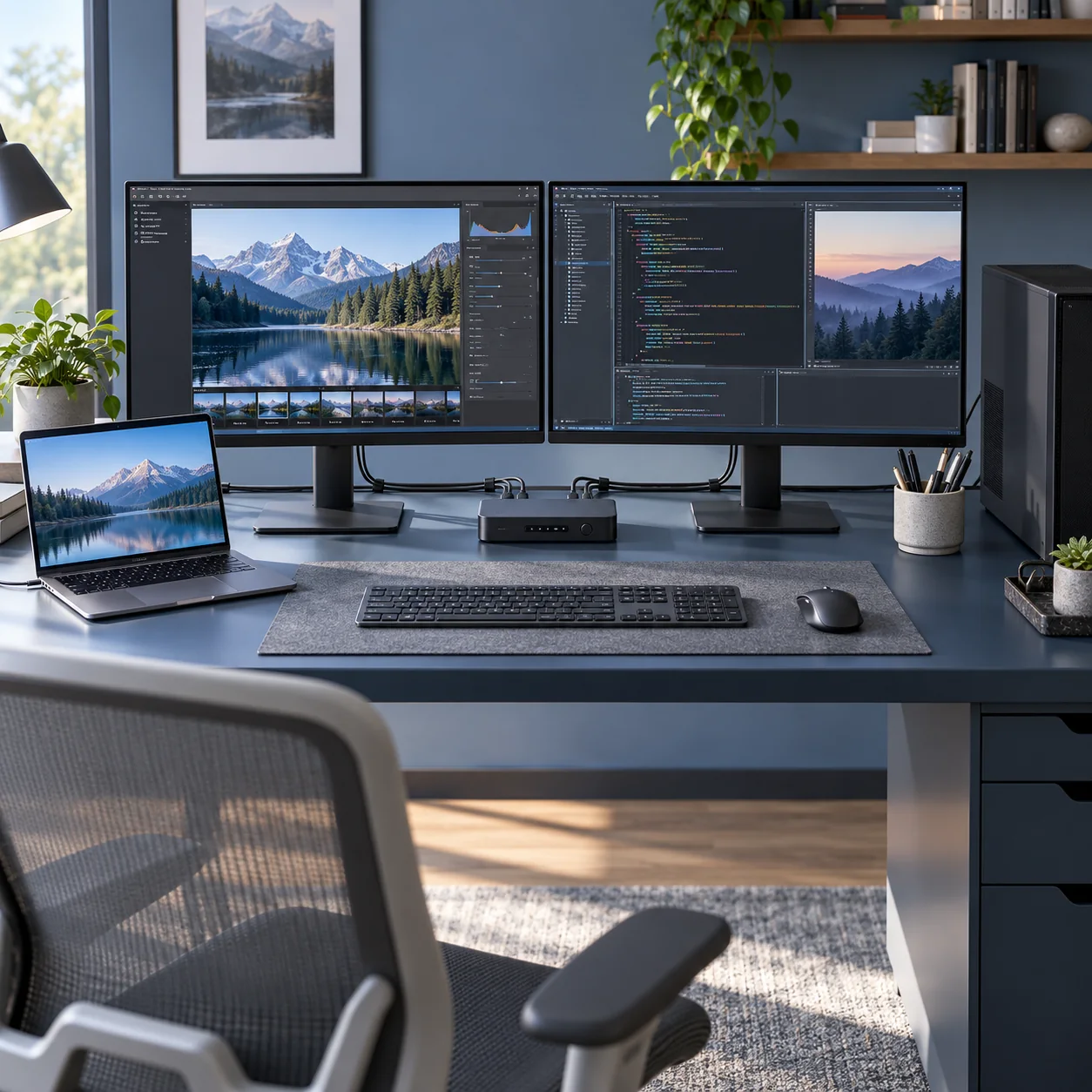
Products and configurations to compare
StarTech dual-monitor DisplayPort KVM
Strong EDID/USB workstation feature set.
Best when: both computers use DisplayPort outputs
Watch for: premium price and DP cabling
Dual HDMI 4K KVM
Common office topology.
Best when: both machines expose dual HDMI
Watch for: HDMI version must match displays
USB-C dock for laptop side
Presents equivalent outputs to KVM.
Best when: one computer is a laptop with USB-C only
Watch for: display limits depend on host
Make both computers look the same to the KVM
Dock the laptop if necessary.
EDID handling matters
Bad implementations rearrange windows every switch.
Use matched cables
Troubleshooting mixed adapters is miserable.
Keep charging separate if needed
A traditional KVM may not power the laptop.
Do not buy 4K60 for a 144Hz gaming target
Different product class.
KVM problems are usually display-topology problems
A KVM is simple only when both computers expose the same display outputs and support the same monitor arrangement. A dual-monitor DisplayPort workstation is straightforward; a laptop with one USB-C port and a desktop GPU with two DisplayPort outputs may require a dock or adapter on the laptop side before the KVM ever sees equivalent video feeds.
USB switching is the other half. Keyboard and mouse ports on some KVMs use HID emulation for faster switching, while high-speed USB devices may sit on a separate USB 3.x hub. If you share webcams, audio interfaces, storage or capture devices, the USB data path deserves as much attention as the monitor spec.
Refresh rate is the hidden limiter
Many office KVMs support 4K 60Hz but not 4K 144Hz or ultrawide high refresh. Gaming users should verify exact resolution/refresh combinations, DisplayPort/HDMI version, DSC support where applicable, and whether adaptive sync survives switching. An office KVM can be excellent and still be the wrong gaming KVM.
Before checkout
- Host port standard is confirmed, not guessed from USB-C connector shape
- Monitor resolution and refresh target are listed before buying a KVM/dock
- USB hub power supply is adequate for attached devices
- Charger port allocation supports the laptop's actual wattage
- USB-C cables have the required power and data rating
- Ethernet path is multi-gig end to end where speed matters
- NVMe enclosure interface matches the host's fastest useful port
- Monitor arm weight/VESA limits exceed the display requirements
- Power strips and UPS units are not daisy-chained
- The purchase removes a recurring desk bottleneck rather than adding ports you will never use
Map the signal path before buying another adapter
For every device, trace the entire path from source to destination. A laptop might connect through Thunderbolt to a dock, then DisplayPort to a KVM, then HDMI through an adapter to a monitor. If something fails at 4K 60Hz, any link can be responsible. Write down the host port, dock capability, cable standard, switch capability and monitor input before buying.
The same rule applies to storage and networking. A 40Gbps enclosure behind a 10Gbps hub is a 10Gbps device. A 2.5GbE adapter connected to a gigabit switch is a gigabit link. A 140W charger using a cable that supports only 60W will negotiate down. Workstation gear is a chain, and the slowest or least-compatible link wins.
Prefer fewer boxes with clearer jobs
Complex desks become unreliable when every box overlaps three others. A good architecture is easy to explain: dock handles the laptop, KVM/USB switch handles computer switching, powered hub handles low-speed peripherals, charger handles mobile power, switch handles Ethernet. Once each box has a clear job, troubleshooting becomes far easier.
Label high-speed USB-C cables, keep one known-good spare, and photograph the back of the desk before cable-managing it. The next time a drive disconnects or a monitor stops waking, you will know exactly what changed.
Frequently asked questions
Can one KVM handle laptop and desktop?
Yes if both provide the required video/USB connections.
Will windows move?
Good EDID management reduces that risk.
Can it charge laptop?
Usually not unless it is a USB-C KVM designed for power delivery.
Can I use adapters?
Often, but each adapter adds compatibility risk.
Current product/source checks
Affiliate disclosure: ComputerGear participates in Amazon Associates and eBay Partner Network. We may earn from qualifying purchases at no extra cost to you. Amazon links use scouttheory-20; eBay links use campaign 5339137014.