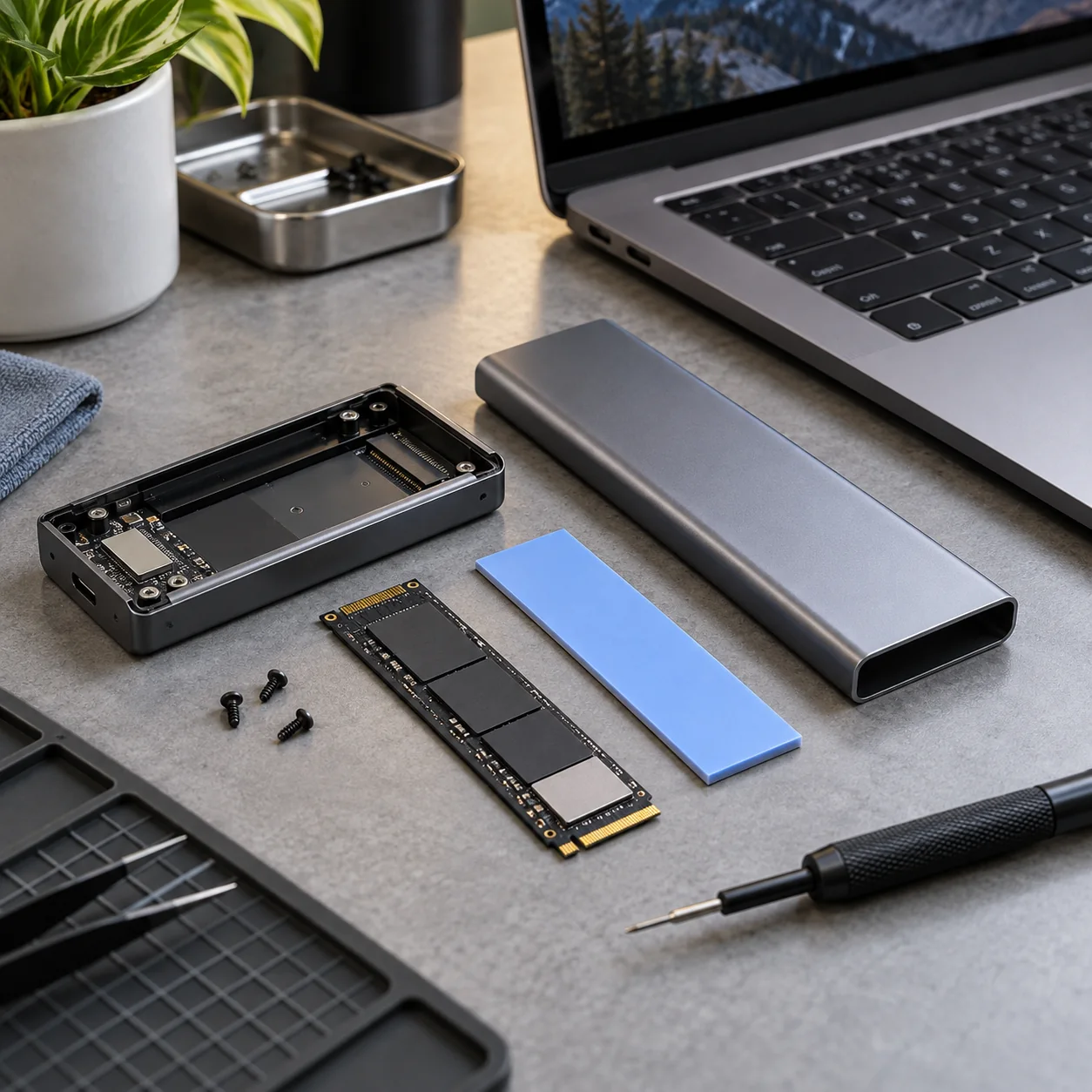
Products and configurations to compare
USB4 NVMe enclosure 40Gbps
Fast external NVMe path.
Best when: large media/project transfers
Watch for: heat and host compatibility
10Gbps NVMe enclosure
Cheap SSD reuse.
Best when: backup and ordinary portable storage
Watch for: tops out far below modern NVMe capability
20Gbps USB 3.2 Gen 2x2 enclosure
Useful niche middle ground.
Best when: Windows host supports 20Gbps 2x2
Watch for: many Macs do not support Gen 2x2 mode
Host support is decisive
A 40Gbps enclosure on a 10Gbps host behaves like the slower link.
Sustained workloads expose thermal throttling
Look for metal chassis and good pad contact.
Cable quality is part of benchmark speed
Use short certified high-speed cable.
Random I/O does not scale like sequential benchmarks
Real application gains vary.
Factory portable SSD may be better for non-builders
One warranty, smaller case.
NVMe enclosures are limited by interface before SSD speed
A modern PCIe 4.0 or 5.0 NVMe drive can benchmark far beyond a 10Gbps USB enclosure, so the enclosure becomes the ceiling. USB 10Gbps typically tops out well below one gigabyte per second after protocol overhead, while 20Gbps and USB4/Thunderbolt-class enclosures can go much faster with compatible hosts.
Thermals matter during sustained transfers. A tiny metal shell may be adequate for short bursts but throttle during large backups. Thermal pads need full contact with the controller/NAND area specified by the enclosure design, and the outer case needs airflow rather than being buried under a laptop.
Portable SSD or enclosure?
A factory portable SSD is simpler, compact and supported as one product. An enclosure lets you choose the NVMe drive, upgrade capacity later and reuse retired internal SSDs. Builders and power users benefit most from the enclosure route.
Before checkout
- Host port standard is confirmed, not guessed from USB-C connector shape
- Monitor resolution and refresh target are listed before buying a KVM/dock
- USB hub power supply is adequate for attached devices
- Charger port allocation supports the laptop's actual wattage
- USB-C cables have the required power and data rating
- Ethernet path is multi-gig end to end where speed matters
- NVMe enclosure interface matches the host's fastest useful port
- Monitor arm weight/VESA limits exceed the display requirements
- Power strips and UPS units are not daisy-chained
- The purchase removes a recurring desk bottleneck rather than adding ports you will never use
Map the signal path before buying another adapter
For every device, trace the entire path from source to destination. A laptop might connect through Thunderbolt to a dock, then DisplayPort to a KVM, then HDMI through an adapter to a monitor. If something fails at 4K 60Hz, any link can be responsible. Write down the host port, dock capability, cable standard, switch capability and monitor input before buying.
The same rule applies to storage and networking. A 40Gbps enclosure behind a 10Gbps hub is a 10Gbps device. A 2.5GbE adapter connected to a gigabit switch is a gigabit link. A 140W charger using a cable that supports only 60W will negotiate down. Workstation gear is a chain, and the slowest or least-compatible link wins.
Prefer fewer boxes with clearer jobs
Complex desks become unreliable when every box overlaps three others. A good architecture is easy to explain: dock handles the laptop, KVM/USB switch handles computer switching, powered hub handles low-speed peripherals, charger handles mobile power, switch handles Ethernet. Once each box has a clear job, troubleshooting becomes far easier.
Label high-speed USB-C cables, keep one known-good spare, and photograph the back of the desk before cable-managing it. The next time a drive disconnects or a monitor stops waking, you will know exactly what changed.
Frequently asked questions
Will USB4 enclosure hit 40Gbps?
40Gbps is link rate, not file-transfer throughput; protocol/SSD limits reduce real speed.
Can I use PCIe 5 SSD?
Physically in compatible M.2 enclosure, but interface may cap performance and heat may be high.
Mac support?
USB4/TB compatibility can be good; verify exact chipset/enclosure support.
Worth it for backups?
Often 10Gbps is already sufficient.
Affiliate disclosure: ComputerGear participates in Amazon Associates and eBay Partner Network. We may earn from qualifying purchases at no extra cost to you. Amazon links use scouttheory-20; eBay links use campaign 5339137014.