Products and configurations to compare
Single gas-spring monitor arm
Independent positioning.
Best when: mixed monitor sizes or future changes
Watch for: two clamps use more desk edge
Dual monitor arm
One clamp, coordinated setup.
Best when: matched displays
Watch for: shared arm geometry can constrain placement
Heavy-duty ultrawide arm
Designed for high weight/torque.
Best when: one heavy ultrawide
Watch for: higher price and desk stress
Weight rating is not enough
Large curved screens create more leverage.
Desk construction matters
Hollow-core or glass desks may need reinforcement/avoidance.
VESA pattern is usually 75x75 or 100x100
But large monitors may use adapters.
Clamp depth steals rear clearance
Check wall distance.
Dual arms look cleaner only if they can align
Geometry beats aesthetics.
Desk hardware should move the screen, not your body
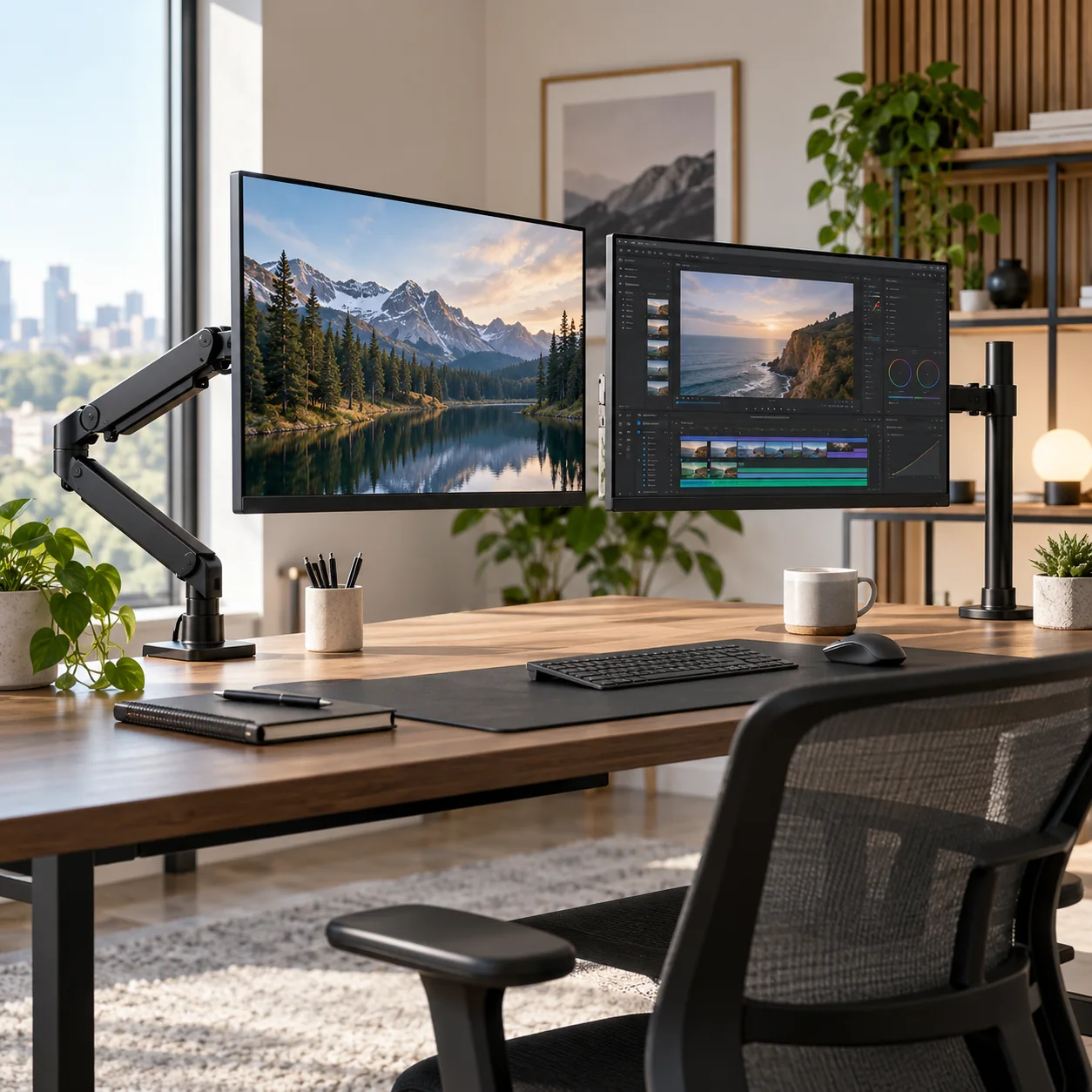
Monitor arms and laptop stands are useful because they make height, depth and angle adjustable without stacking books or occupying the entire desk. The buying specs are monitor weight, VESA pattern, desk thickness, clamp/grommet compatibility and whether the arm can hold the display without slowly sagging.
Large ultrawides need heavy-duty arms with a real weight margin. Dual arms need enough lateral range that both displays can align without the elbows colliding behind the desk. Gas-spring arms are convenient for frequent adjustment; pole-style mounts are often simpler and more rigid once positioned.
Standing desks change cable requirements
Every cable needs enough slack for maximum desk height without becoming a dangling loop at sitting height. A mounted power strip and one flexible mains lead often creates a cleaner moving system than running six independent power cords down to the wall.
Before checkout
- Host port standard is confirmed, not guessed from USB-C connector shape
- Monitor resolution and refresh target are listed before buying a KVM/dock
- USB hub power supply is adequate for attached devices
- Charger port allocation supports the laptop's actual wattage
- USB-C cables have the required power and data rating
- Ethernet path is multi-gig end to end where speed matters
- NVMe enclosure interface matches the host's fastest useful port
- Monitor arm weight/VESA limits exceed the display requirements
- Power strips and UPS units are not daisy-chained
- The purchase removes a recurring desk bottleneck rather than adding ports you will never use
Map the signal path before buying another adapter
For every device, trace the entire path from source to destination. A laptop might connect through Thunderbolt to a dock, then DisplayPort to a KVM, then HDMI through an adapter to a monitor. If something fails at 4K 60Hz, any link can be responsible. Write down the host port, dock capability, cable standard, switch capability and monitor input before buying.
The same rule applies to storage and networking. A 40Gbps enclosure behind a 10Gbps hub is a 10Gbps device. A 2.5GbE adapter connected to a gigabit switch is a gigabit link. A 140W charger using a cable that supports only 60W will negotiate down. Workstation gear is a chain, and the slowest or least-compatible link wins.
Prefer fewer boxes with clearer jobs
Complex desks become unreliable when every box overlaps three others. A good architecture is easy to explain: dock handles the laptop, KVM/USB switch handles computer switching, powered hub handles low-speed peripherals, charger handles mobile power, switch handles Ethernet. Once each box has a clear job, troubleshooting becomes far easier.
Label high-speed USB-C cables, keep one known-good spare, and photograph the back of the desk before cable-managing it. The next time a drive disconnects or a monitor stops waking, you will know exactly what changed.
Frequently asked questions
Two singles or one dual?
Singles for flexibility; dual for matched monitors and one clamp.
Can arm damage desk?
Improper clamping on weak surfaces can.
Do I need reinforcement plate?
Useful for thin desktops and heavy displays.
Can I mount laptop tray on arm?
Some systems support VESA trays, but check weight/balance.
Affiliate disclosure: ComputerGear participates in Amazon Associates and eBay Partner Network. We may earn from qualifying purchases at no extra cost to you. Amazon links use scouttheory-20; eBay links use campaign 5339137014.